GitLab and RustFS Integration: OIDC SSO and S3 Object Storage

GitLab and RustFS can form a fully self-hosted platform for source control, CI/CD, identity, and scalable object storage. A GitLab RustFS integration gives teams two practical capabilities: employees can sign in to the RustFS Console with their GitLab accounts, and GitLab can store artifacts and other large objects in RustFS instead of on local disk.
This guide walks through both configurations:
- Use GitLab as an OpenID Connect (OIDC) identity provider for RustFS single sign-on.
- Use RustFS as an S3-compatible object storage backend for GitLab CI/CD artifacts.
The same object storage pattern can also support Git LFS objects, uploads, packages, Terraform state, Pages, secure files, external merge request diffs, and the dependency proxy.
The examples use
gitlab.example.comandrustfs.example.com. Replace these hostnames with your own domains. HTTP is acceptable for an isolated test environment, but production deployments should use HTTPS.
Why integrate GitLab with RustFS?
GitLab is a comprehensive DevSecOps platform that can be deployed in a private environment. RustFS is an open-source, high-performance, S3-compatible object storage system that can also run entirely on your own infrastructure.
Connecting the two platforms provides several benefits:
- Centralized identity: GitLab OIDC lets users access RustFS with an existing company account.
- Scalable CI/CD storage: Build artifacts can move from a GitLab server's local disk to dedicated object storage.
- S3 compatibility: GitLab can connect to RustFS through its standard S3 object storage configuration.
- Data control: Source code, credentials, metadata, and build outputs remain inside infrastructure you manage.
- Independent scaling: GitLab compute resources and RustFS storage capacity can scale separately.
Part 1: Configure GitLab OIDC single sign-on for RustFS
With OIDC enabled, GitLab authenticates users while RustFS controls what those users are allowed to do. The login flow uses the GitLab application ID and secret to establish trust between the two services.
Prerequisites
Before starting, make sure you have:
- A running GitLab instance and access to its Admin Area.
- A running RustFS instance and permission to edit its service environment.
- DNS records for both services.
- TLS certificates for production endpoints.
- A RustFS IAM policy appropriate for GitLab users.
Install RustFS
RustFS supports binary, Docker, and Kubernetes deployments. On Ubuntu 22.04, you can use the installation script for a quick test deployment:
curl -O https://rustfs.com/install_rustfs.sh
bash install_rustfs.sh
After installation, edit /etc/default/rustfs and replace the default values of RUSTFS_ACCESS_KEY and RUSTFS_SECRET_KEY. Use strong, unique credentials and do not retain the default rustfsadmin value.
Restart RustFS after updating the configuration:
sudo systemctl restart rustfs
Open the RustFS Console at:
https://rustfs.example.com
The OIDC callback URL for the default provider is:
https://rustfs.example.com/rustfs/admin/v3/oidc/callback/default
Keep this URL available. GitLab requires an exact match when you create the OAuth application.
Create a GitLab OAuth application
You can use GitLab Community Edition, Enterprise Edition, or another compatible self-managed distribution. If GitLab is not yet installed, follow the official GitLab installation documentation.
To create the application:
-
Sign in to GitLab as an administrator.
-
Open Admin Area.
-
Select Applications, then select New application or Add new application.
-
Enter a descriptive name such as
RustFS OIDC. -
Set Redirect URI to:
https://rustfs.example.com/rustfs/admin/v3/oidc/callback/default -
Enable the
openid,profile, andemailscopes. -
Save the application.
-
Copy the generated Application ID and Secret to a secure location.
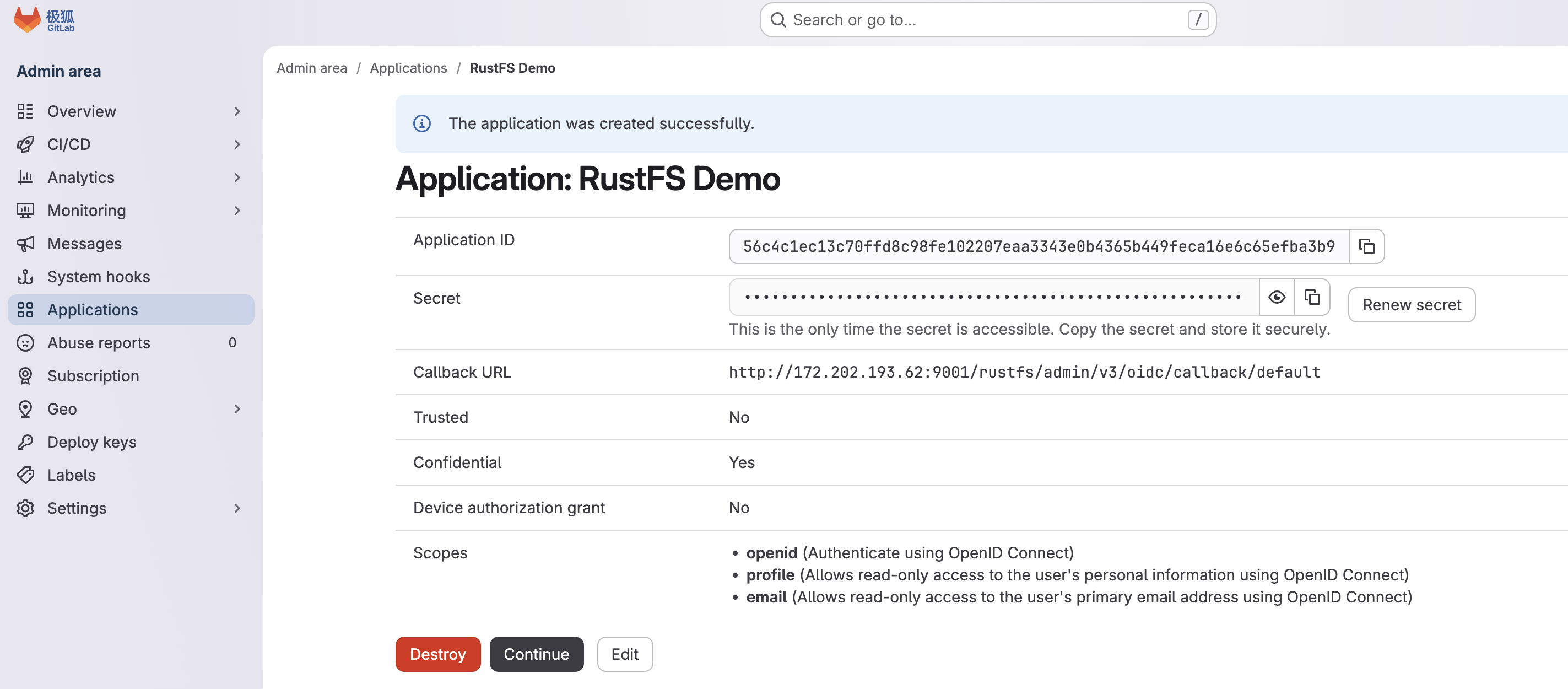
The application secret is sensitive. Store it in a secret manager or another protected configuration system rather than in source control.
Configure GitLab OIDC in RustFS
Edit /etc/default/rustfs and add the following environment variables:
RUSTFS_BROWSER_REDIRECT_URL="https://rustfs.example.com"

RUSTFS_IDENTITY_OPENID_ENABLE=on
RUSTFS_IDENTITY_OPENID_CONFIG_URL="https://gitlab.example.com"
RUSTFS_IDENTITY_OPENID_CLIENT_ID="<gitlab-application-id>"
RUSTFS_IDENTITY_OPENID_CLIENT_SECRET="<gitlab-application-secret>"
RUSTFS_IDENTITY_OPENID_SCOPES="openid,profile,email"
RUSTFS_IDENTITY_OPENID_REDIRECT_URI="https://rustfs.example.com/rustfs/admin/v3/oidc/callback/default"
RUSTFS_IDENTITY_OPENID_REDIRECT_URI_DYNAMIC=off
RUSTFS_IDENTITY_OPENID_DISPLAY_NAME="GitLab"
RUSTFS_IDENTITY_OPENID_EMAIL_CLAIM="email"
RUSTFS_IDENTITY_OPENID_USERNAME_CLAIM="preferred_username"
RUSTFS_IDENTITY_OPENID_ROLE_POLICY="consoleAdmin"
Replace <gitlab-application-id> and <gitlab-application-secret> with the credentials created in GitLab.
The example assigns the consoleAdmin policy to users who authenticate through this provider. For production, follow the principle of least privilege and replace it with a policy that grants only the required permissions.
Restart the service:
sudo systemctl restart rustfs
Verify the OIDC login flow
Open the RustFS Console. The login page should now display Login with GitLab.
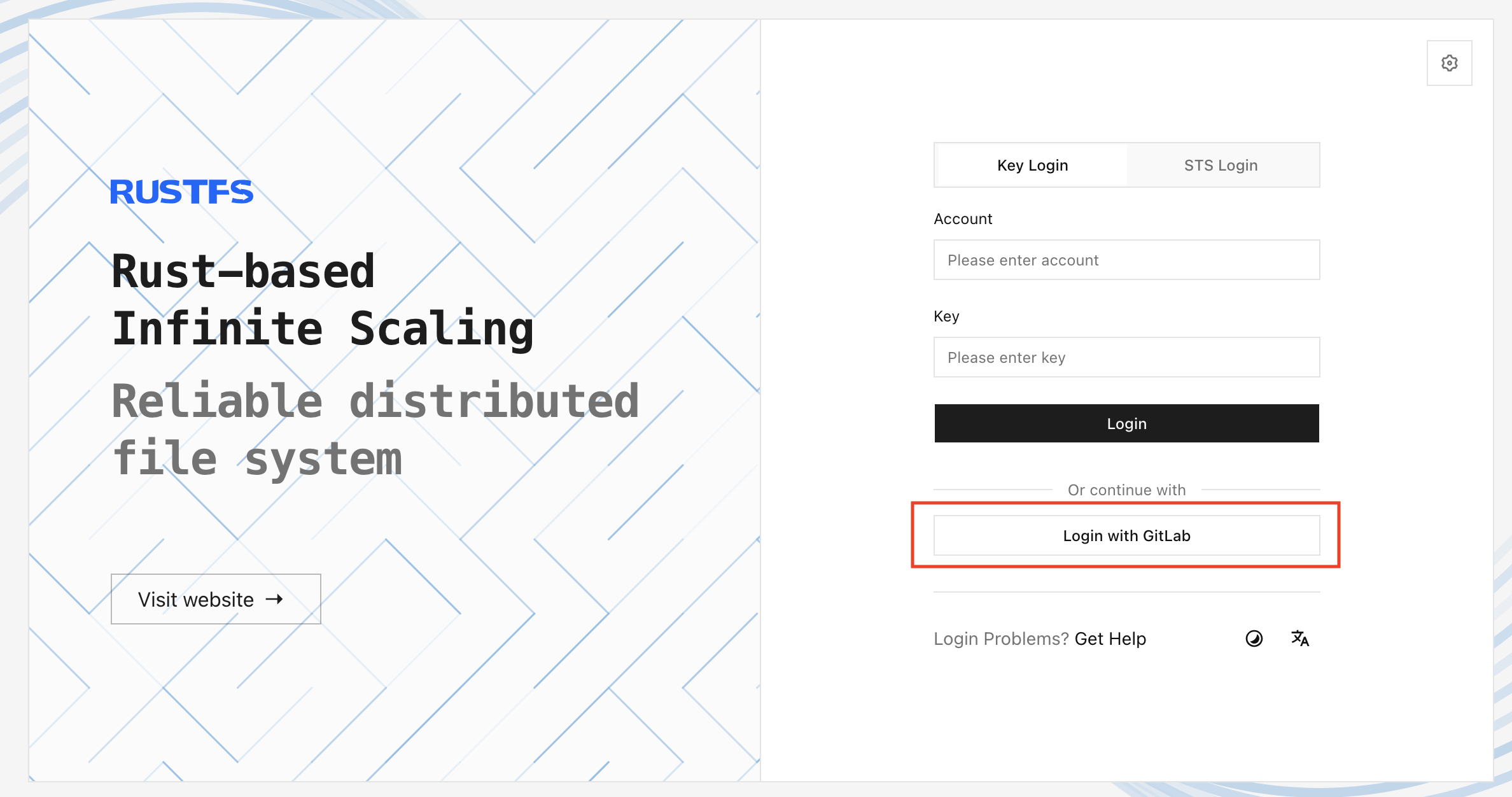
Select the button and verify that:
- The browser redirects to GitLab.
- GitLab authenticates the user.
- GitLab redirects the browser to the RustFS callback URL.
- The RustFS Console opens with the policy configured in
RUSTFS_IDENTITY_OPENID_ROLE_POLICY.
If GitLab reports a redirect URI mismatch, compare the GitLab application URI and RUSTFS_IDENTITY_OPENID_REDIRECT_URI character by character. The scheme, hostname, port, path, and trailing slash behavior must match.
Part 2: Use RustFS as GitLab object storage
GitLab can store several data types in an S3-compatible service, including:
- CI/CD artifacts
- Git LFS objects
- User uploads
- Package registry data
- Terraform state
- GitLab Pages content
- CI/CD secure files
- External merge request diffs
- Dependency proxy objects
Because RustFS implements the S3 API, GitLab can connect to it by using the AWS provider with a custom endpoint and path-style requests.
Create a RustFS bucket
Create a dedicated bucket for each GitLab data type that you plan to move to object storage. For this example, create a bucket named artifacts.
You can create the bucket in the RustFS Console or with a compatible client. See the RustFS bucket creation documentation for detailed instructions.
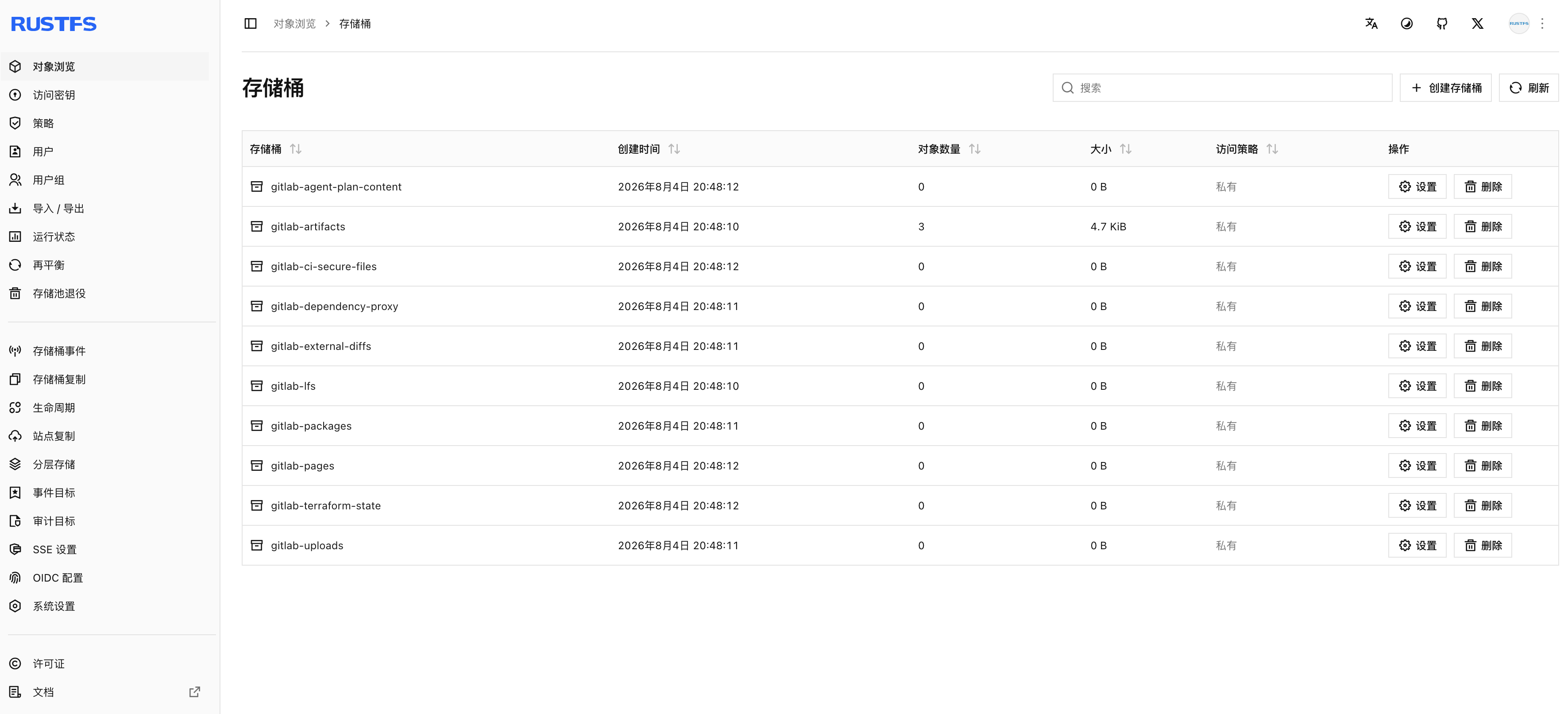
For production environments:
- Use a dedicated RustFS access key for GitLab.
- Grant that identity access only to the required buckets.
- Enable TLS for the RustFS S3 endpoint.
- Apply lifecycle and retention rules based on your CI/CD requirements.
- Monitor capacity, request errors, and object growth.
Configure GitLab CI/CD artifacts storage
On an Omnibus GitLab installation, edit /etc/gitlab/gitlab.rb and add the following configuration:
gitlab_rails['artifacts_enabled'] = true
gitlab_rails['artifacts_object_store_enabled'] = true
gitlab_rails['artifacts_object_store_proxy_download'] = false
gitlab_rails['artifacts_object_store_remote_directory'] = 'artifacts'
gitlab_rails['artifacts_object_store_connection'] = {
  'provider' => 'AWS',
  'region' => 'us-east-1',
  'aws_access_key_id' => 'RUSTFS_ACCESS_KEY',
  'aws_secret_access_key' => 'RUSTFS_SECRET_KEY',
  'endpoint' => 'https://rustfs.example.com',
  'path_style' => true,
  'aws_signature_version' => 4
}
Replace the endpoint and credentials with values from your RustFS deployment. If the S3 API uses a dedicated port, include it in the endpoint, for example https://rustfs.example.com:9000.
Apply the GitLab configuration:
sudo gitlab-ctl reconfigure
Test artifact uploads from a GitLab pipeline
Create or update .gitlab-ci.yml in a test project:
stages:
  - build

build:
  stage: build
  script:
    - mkdir -p output
    - echo "RustFS object storage test from GitLab" > output/rustfs.txt
    - ls -ltr output
  tags:
    - rustfs
  artifacts:
    paths:
      - output/*.txt
    expire_in: 1 week
Run the pipeline and wait for the job to complete. Then open the artifacts bucket in the RustFS Console.
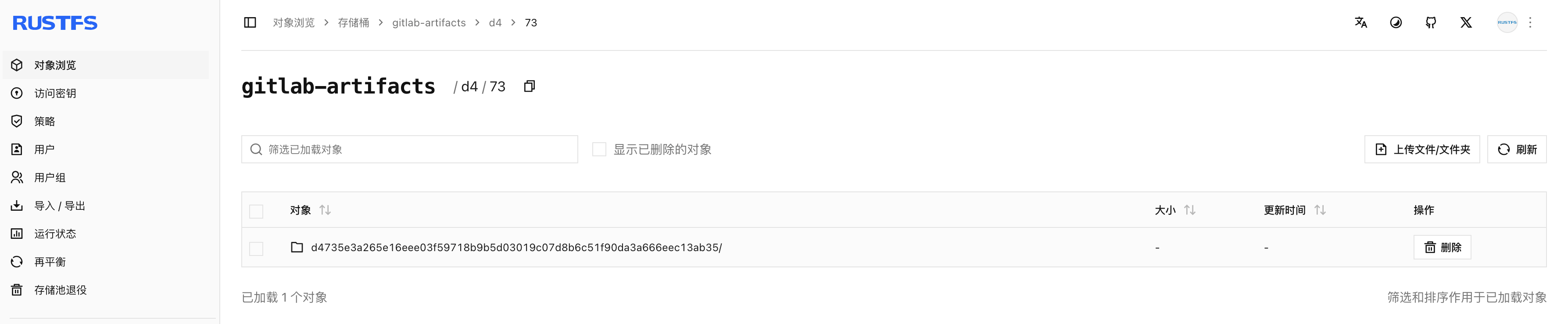
If objects appear in the bucket, GitLab is successfully storing CI/CD artifacts in RustFS instead of on the GitLab server's local disk.
Configure other GitLab data types
GitLab uses similar object storage settings for LFS, uploads, packages, Terraform state, Pages, secure files, external diffs, and the dependency proxy. Use a separate bucket name for each data type and apply a narrowly scoped RustFS policy.
Before migrating production data, review the current GitLab object storage documentation for settings specific to your GitLab version.
Troubleshooting GitLab and RustFS integration
OIDC login button does not appear
Confirm that RUSTFS_IDENTITY_OPENID_ENABLE is set to on, the GitLab configuration URL is reachable from the RustFS host, and RustFS was restarted after the environment file changed.
GitLab reports a redirect URI mismatch
The redirect URI registered in GitLab must exactly match RUSTFS_IDENTITY_OPENID_REDIRECT_URI. Pay particular attention to HTTP versus HTTPS, ports, and trailing slashes.
GitLab cannot upload artifacts
Check the RustFS endpoint, access key, secret key, bucket name, and network connectivity. Keep path_style enabled for the configuration shown in this guide, and confirm that the GitLab identity can read and write objects in the artifacts bucket.
Artifacts remain on local disk
Run sudo gitlab-ctl reconfigure, inspect GitLab logs for object storage errors, and verify that the pipeline produced an artifact. Existing local artifacts are not necessarily migrated automatically when object storage is enabled.
Frequently asked questions
Is RustFS compatible with GitLab object storage?
Yes. RustFS provides an S3-compatible API, and GitLab supports S3-compatible object storage through its AWS provider configuration and a custom endpoint.
Can GitLab authenticate RustFS users?
Yes. GitLab can act as an OIDC identity provider. Users sign in through GitLab, while RustFS maps the authenticated identity to a local IAM policy.
Can RustFS store more than GitLab CI/CD artifacts?
Yes. GitLab can use object storage for artifacts, LFS objects, uploads, packages, Terraform state, Pages, secure files, external diffs, and dependency proxy data.
Should GitLab and RustFS use HTTPS?
Yes. Production deployments should use HTTPS for both the GitLab OIDC endpoints and the RustFS Console and S3 API. TLS protects credentials, tokens, and application data in transit.
Conclusion
Integrating GitLab with RustFS creates a self-hosted workflow with centralized authentication and scalable S3-compatible storage. OIDC reduces the need for separate RustFS Console credentials, while object storage prevents CI/CD artifacts and other large files from consuming GitLab's local disk.
Start with a test bucket and a limited IAM policy, validate the complete login and upload flows, and then expand the configuration to additional GitLab data types as your storage requirements grow.